
Il tuo carrello è vuoto
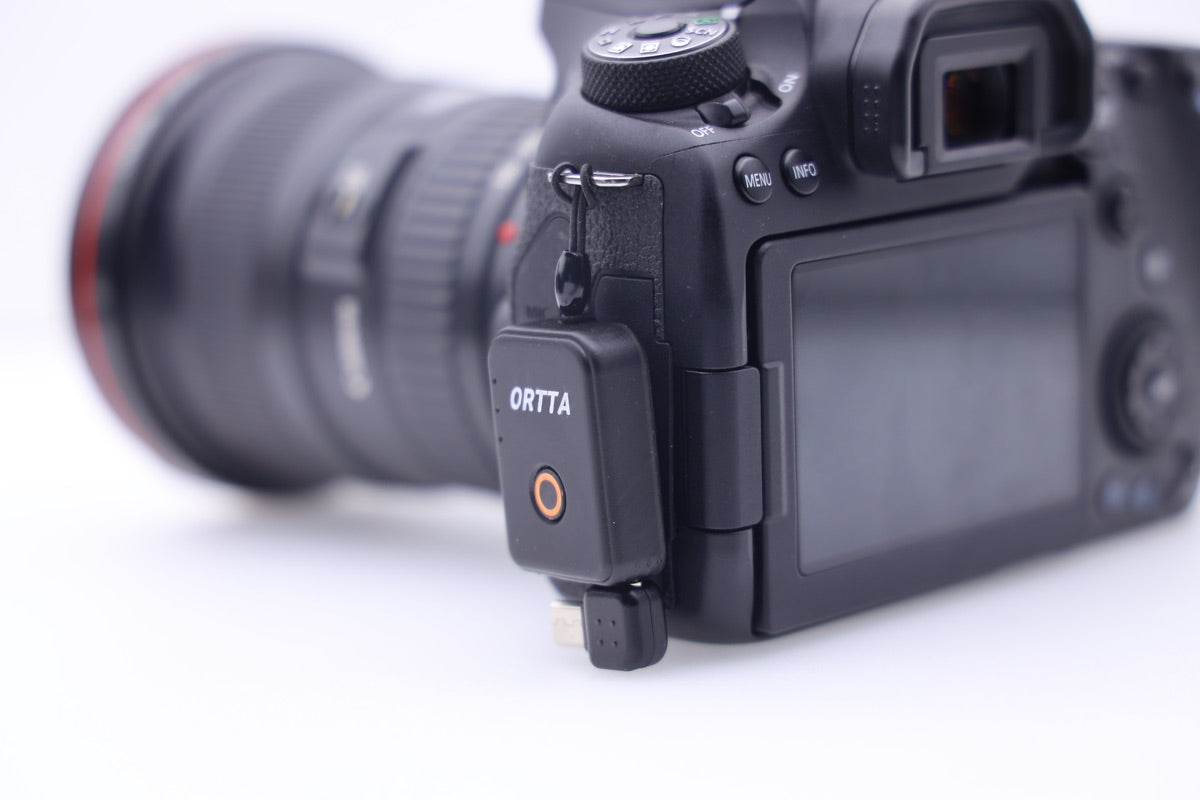
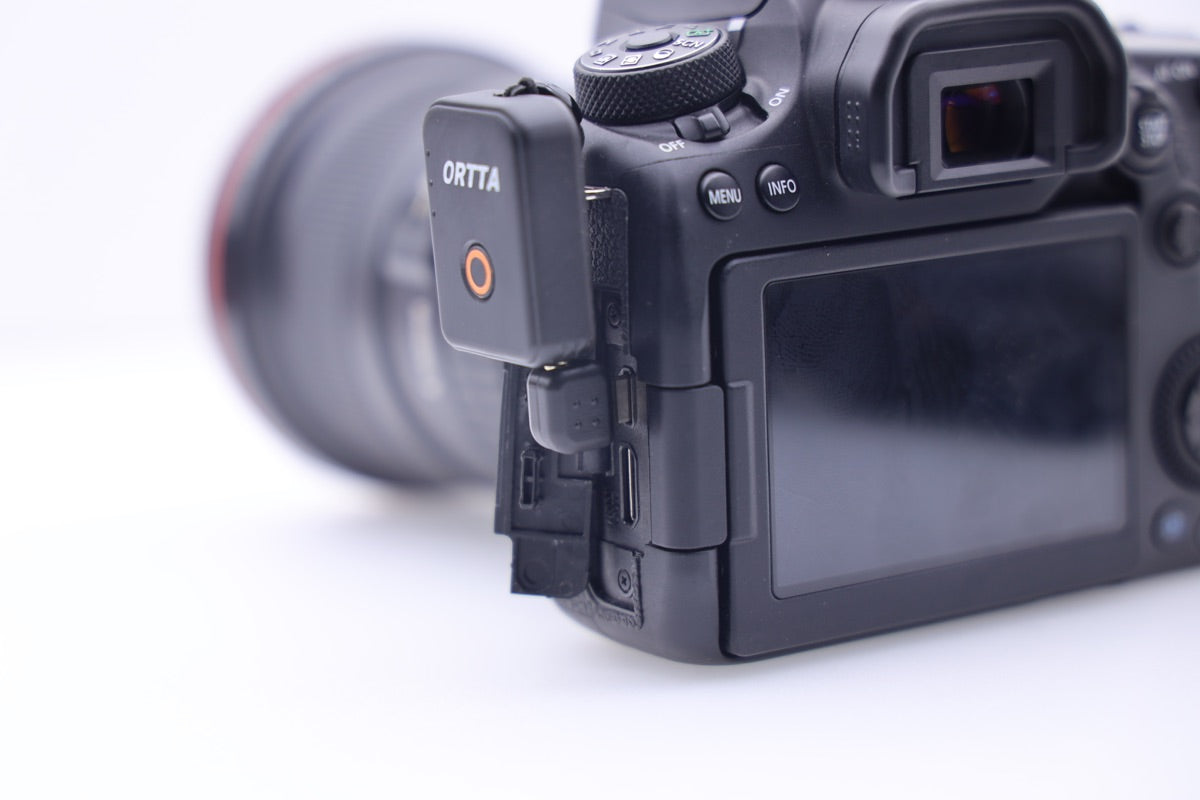
A Bluetooth receiver that plugs into the USB port of your camera: live view, photo review, shooting programs and geotag.
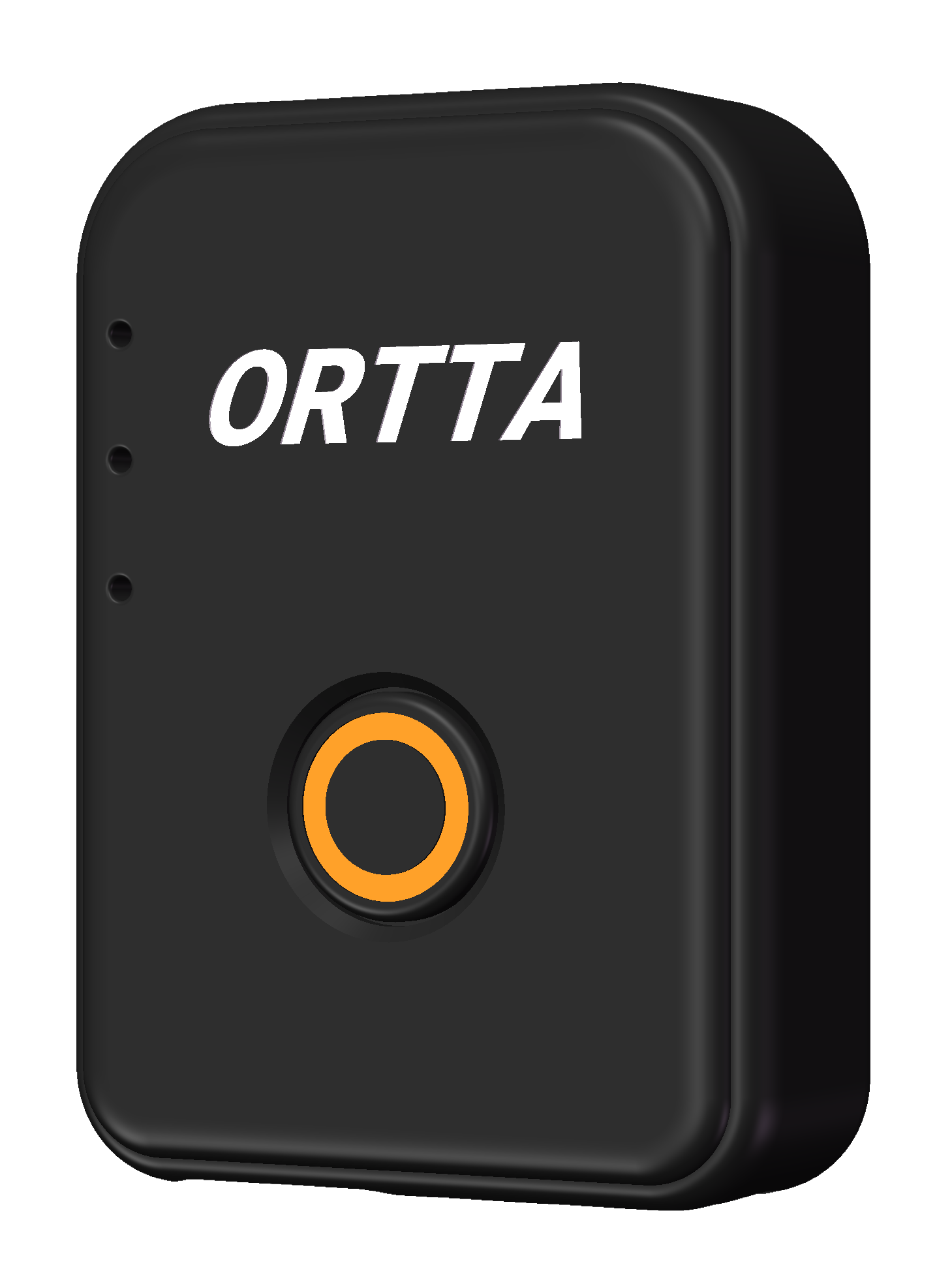
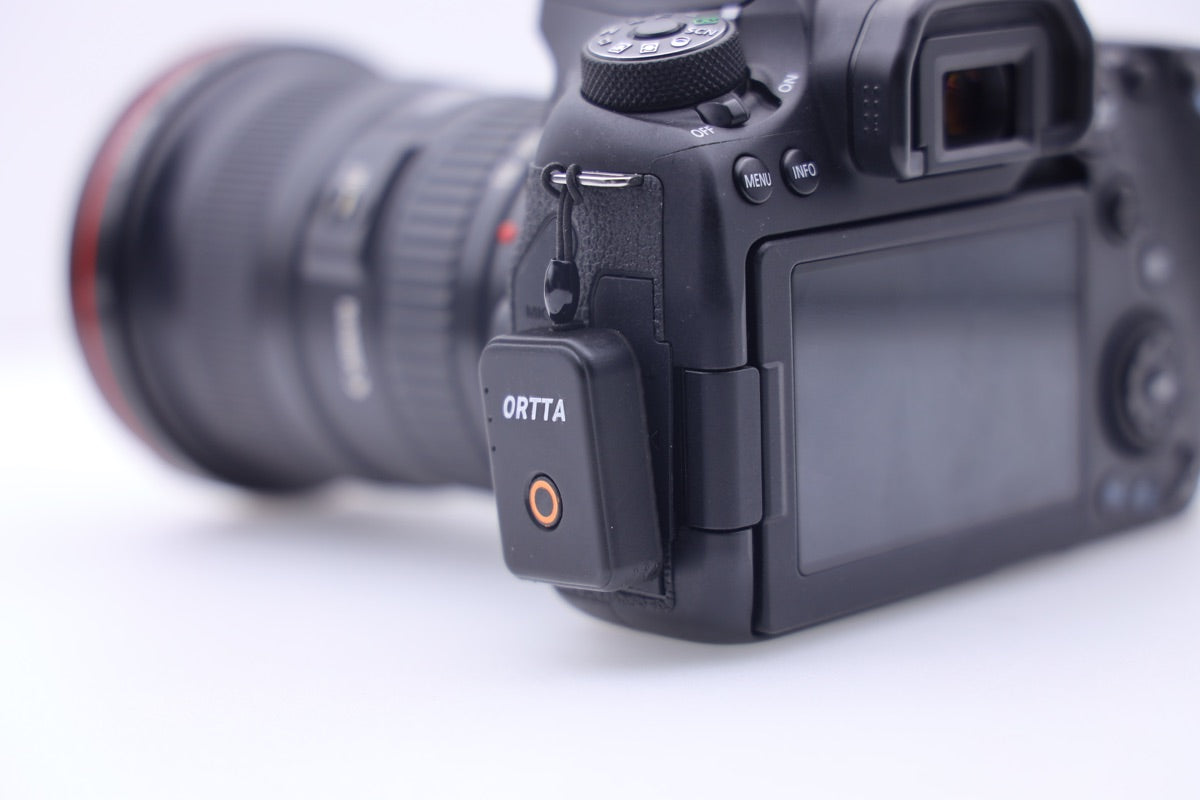
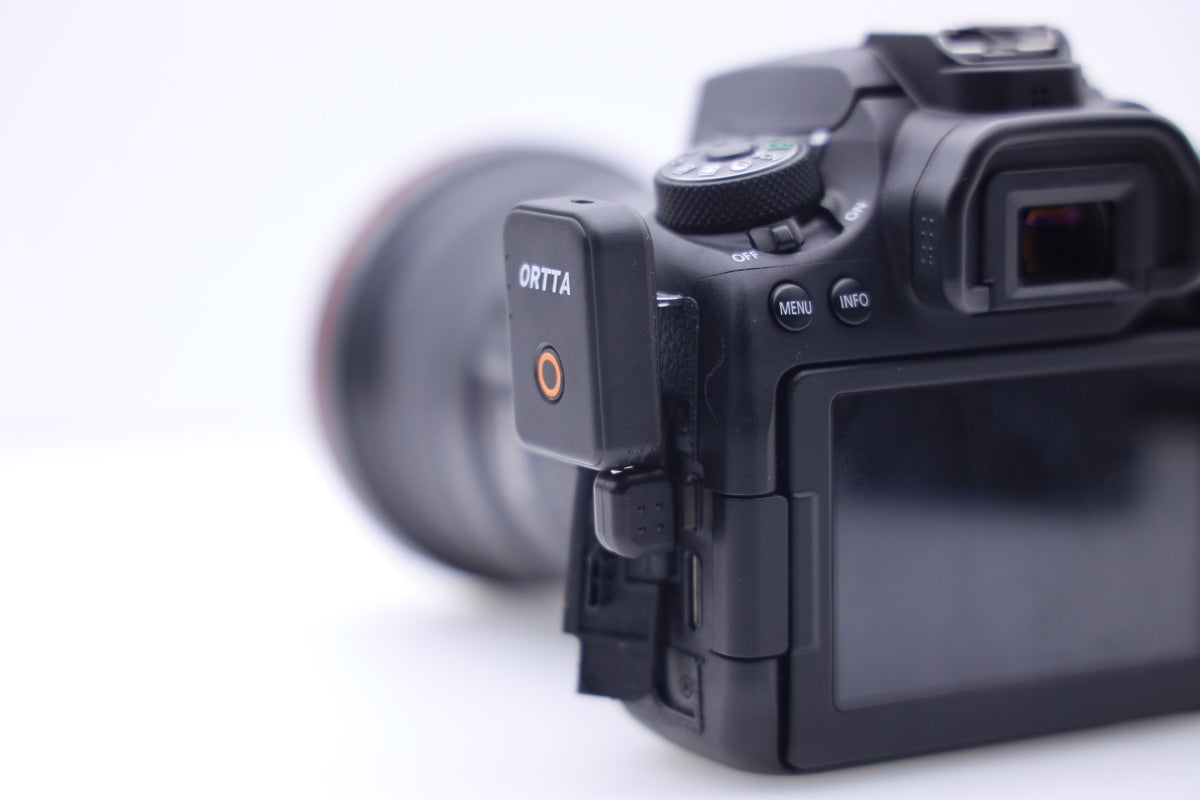
Thank you for purchasing the ORTTA Io Pro, a small Bluetooth receiver for the USB port of your camera. Io Pro lets Ortta remotes, the Ortta app and the Ortta Watch app control the camera from a distance. It fires the camera and runs the shooting programs by itself, and it also reads the camera: you can see live view and review each photo on your remote or phone right after it is taken. With a Canon camera, Io Pro can also write the position of your phone or remote into your photos.
You can control Io Pro from:
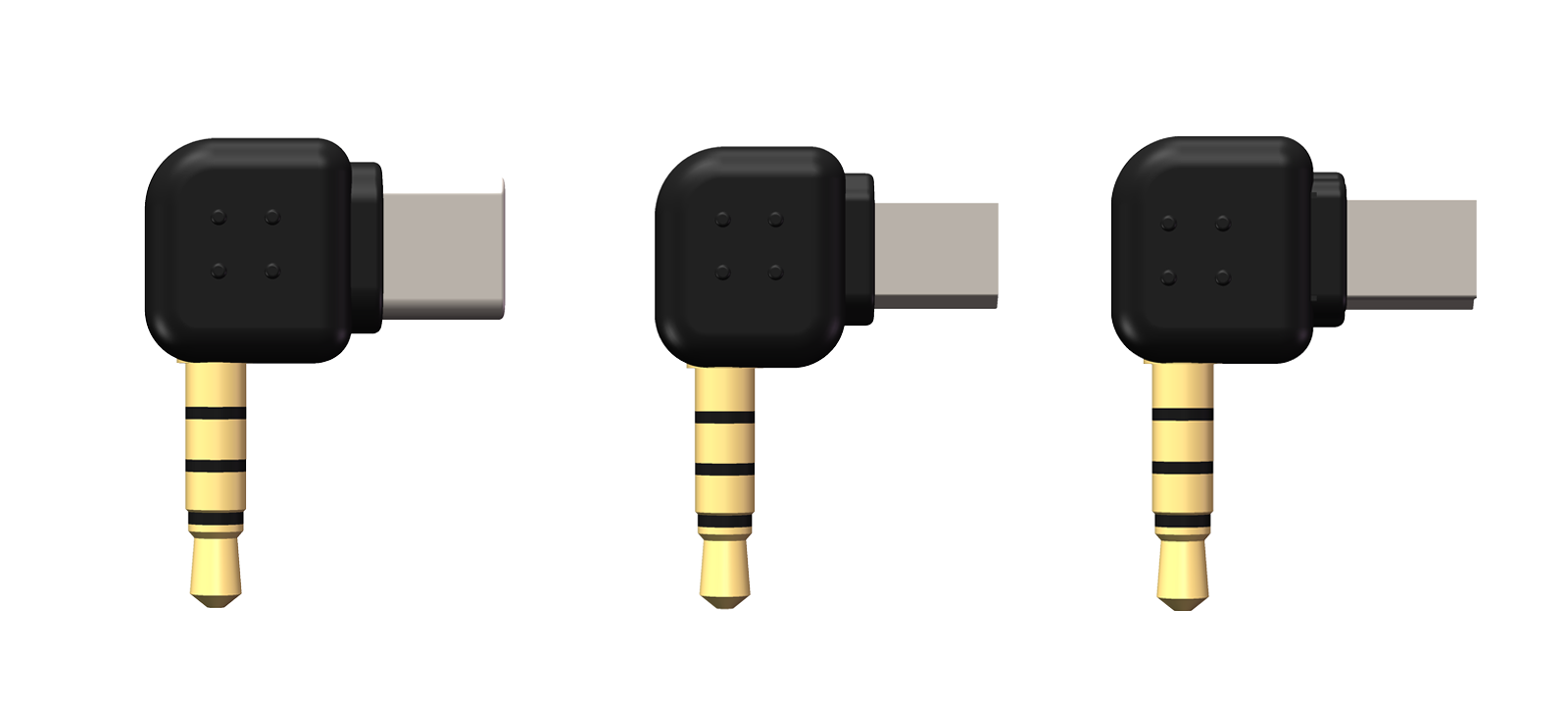
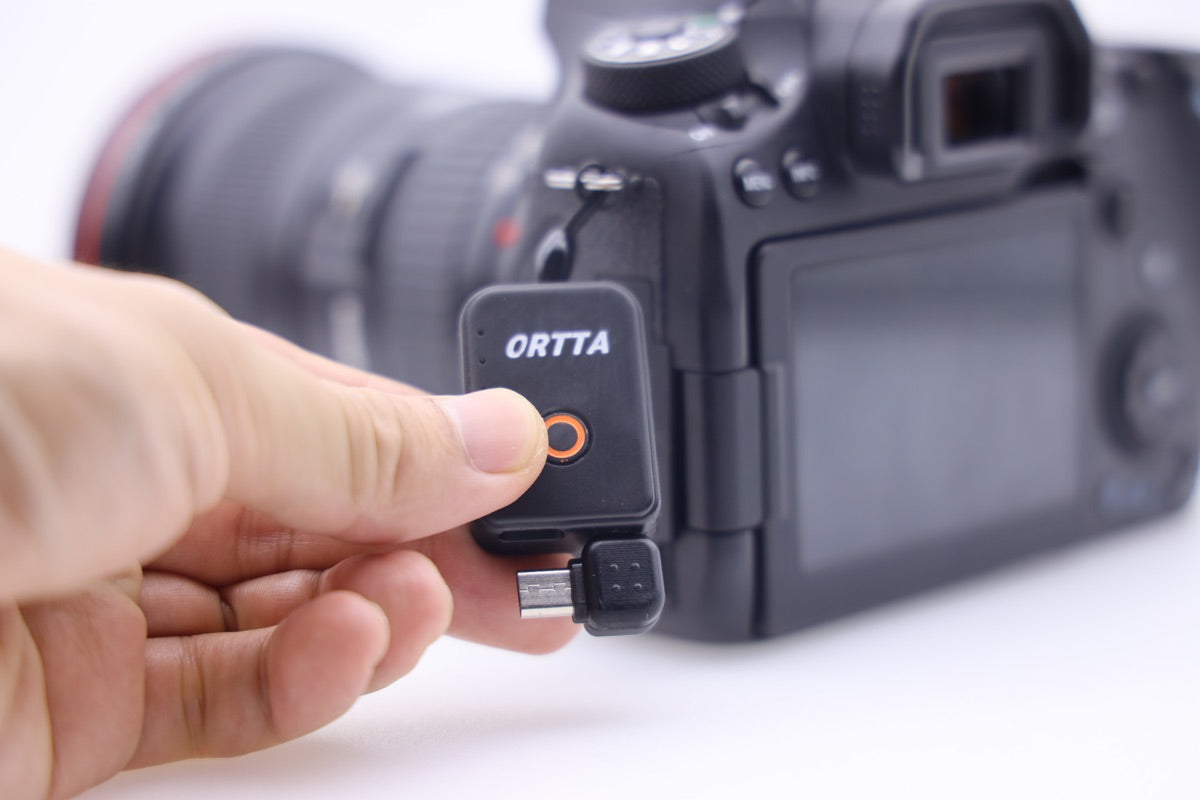
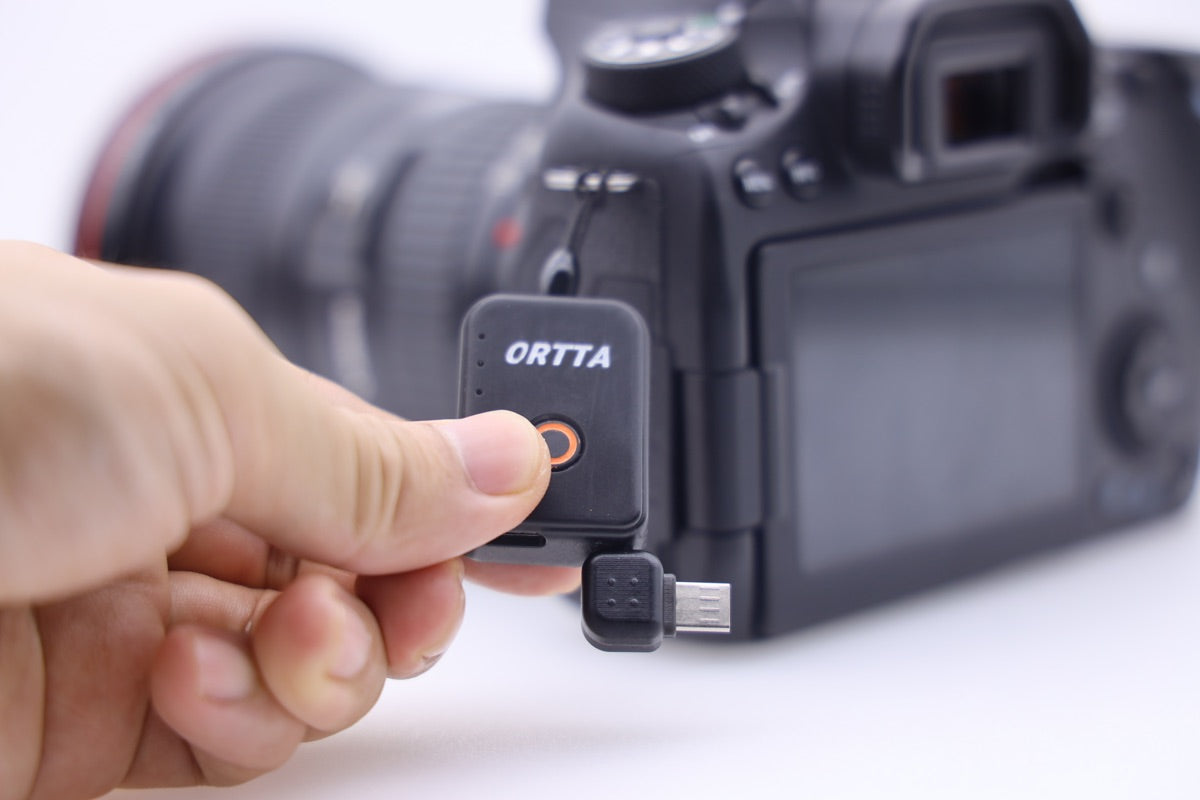
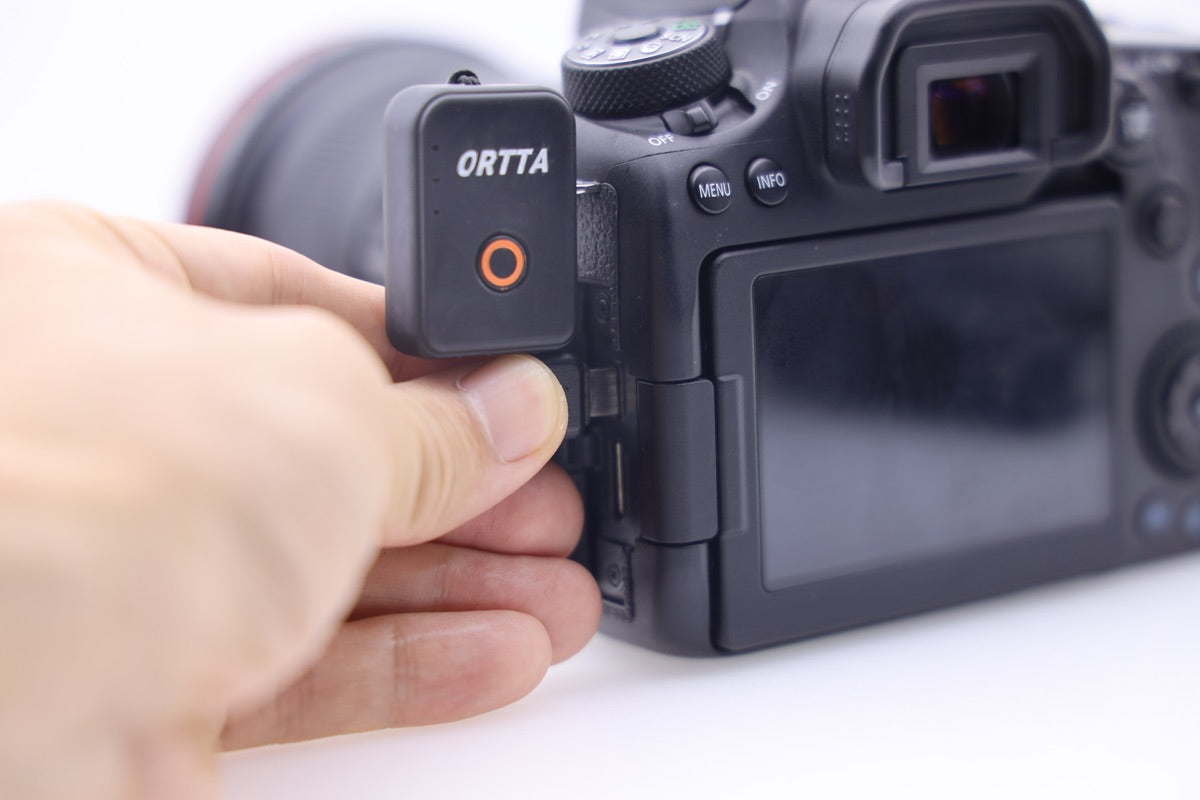
The adapter plug is not in the box. It connects Io Pro to the USB port of your camera. There are four types, so buy the one that fits your camera separately:
See Camera compatibility.
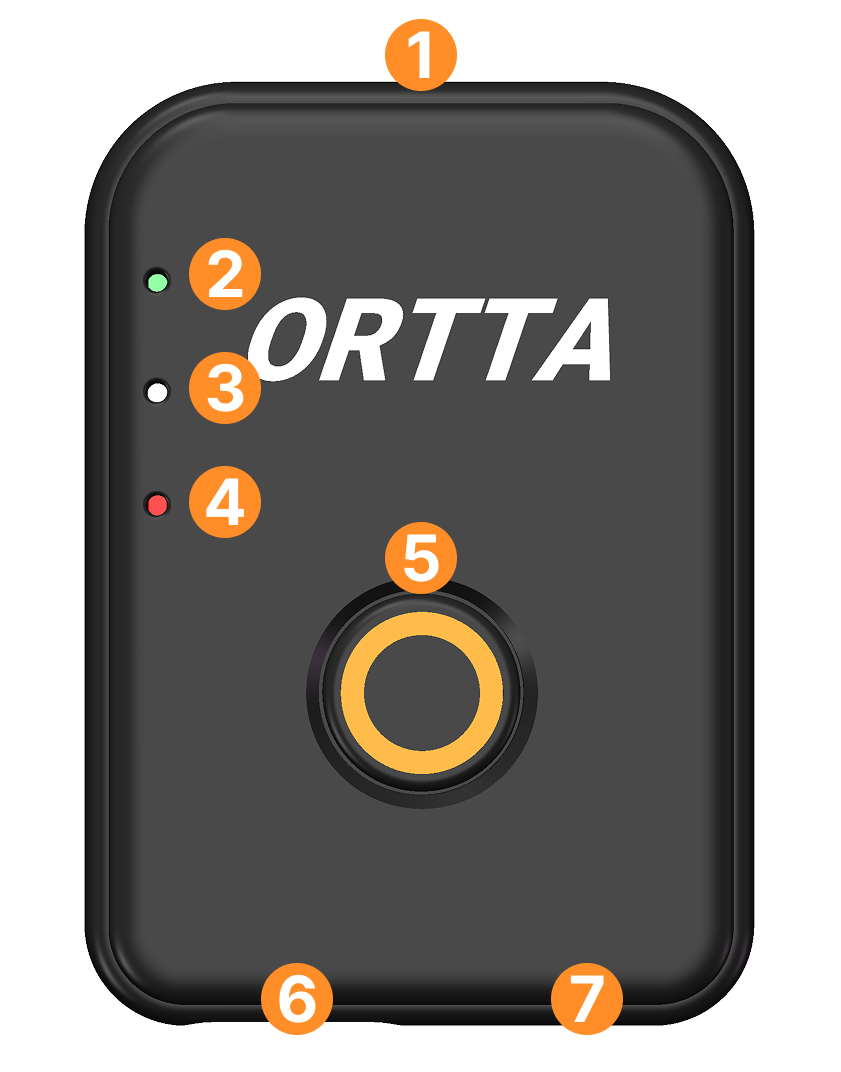
Io Pro has one button.
| Action | When Io Pro is off | When Io Pro is on |
|---|---|---|
| Click | Takes a photo | |
| Long press (about 2 s) | Turns Io Pro on | Turns Io Pro off |
A double click is the same as a single click: it takes one photo.
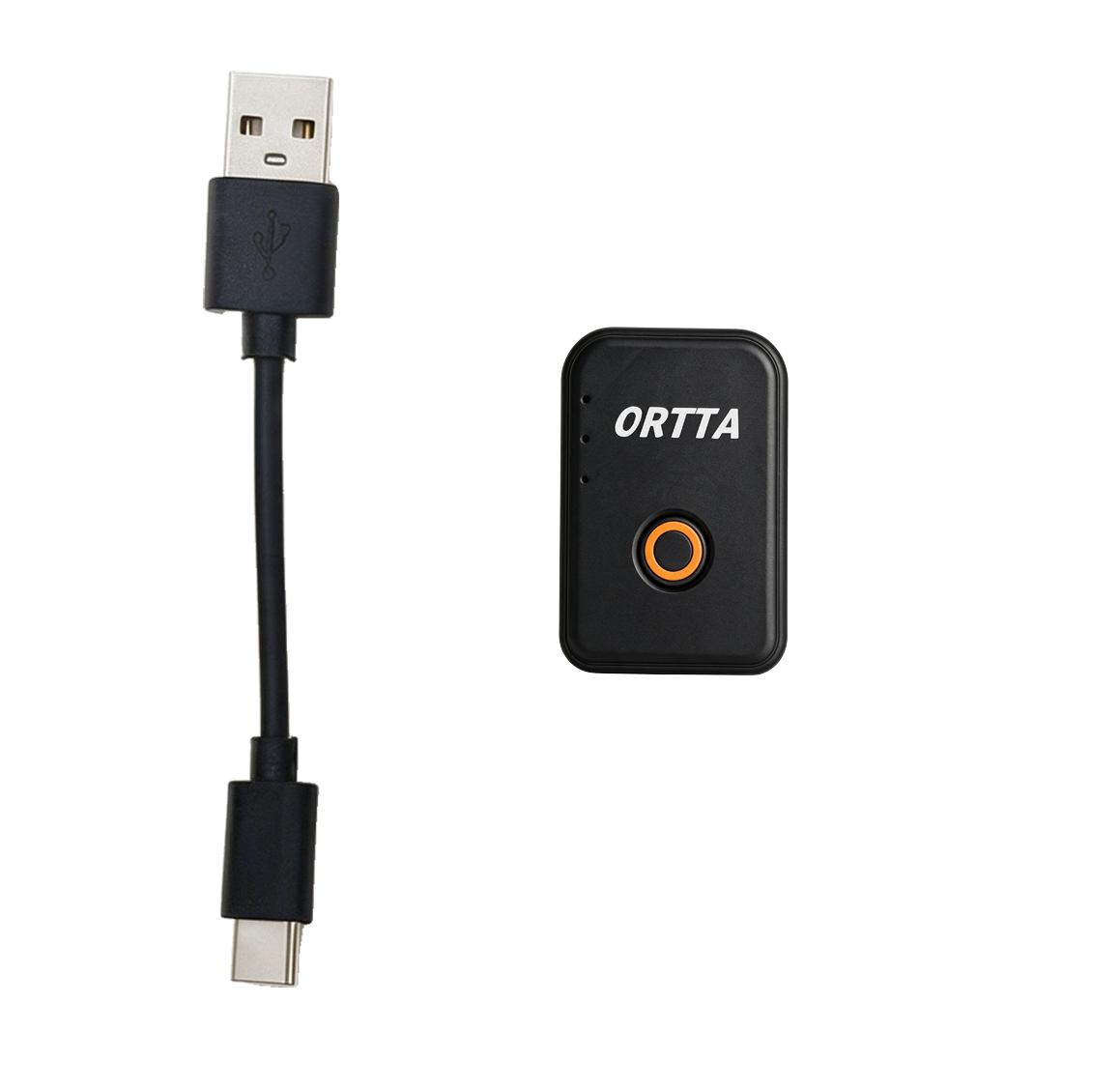
Connect Io Pro to a USB power source with the supplied USB-A to USB-C cable. The orange LED lights while it charges and turns off when the battery is full. A full charge takes about 1 hour, and the battery lasts about 8 hours.
Io Pro has three LEDs, the same as Pluto 2.
| LED | Colour | Meaning |
|---|---|---|
| Program | Green | Lights while the camera is taking a photo. Flashes when a program starts and stops. Blinks once when the Ortta app connects, and twice when a connection ends. |
| Power | White | Lights while Io Pro starts, then stays dim while it is on |
| Charging | Orange | Lights while charging, off when fully charged |
The brightness of the green and white LEDs can be changed in the Ortta app under Settings › Device Settings, or on a remote under Settings › Devices › Device settings.
 |
 |
 |
 |
 |
| 1 | 2 | 3 | 4 | 5 |
 |
 |
Io Pro works with Canon, Nikon, Sony, Fujifilm and Panasonic cameras that support USB PTP control. Which functions are available depends on the camera model. See Camera compatibility.
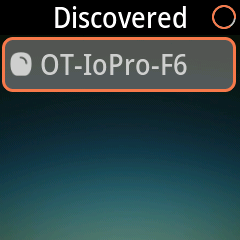
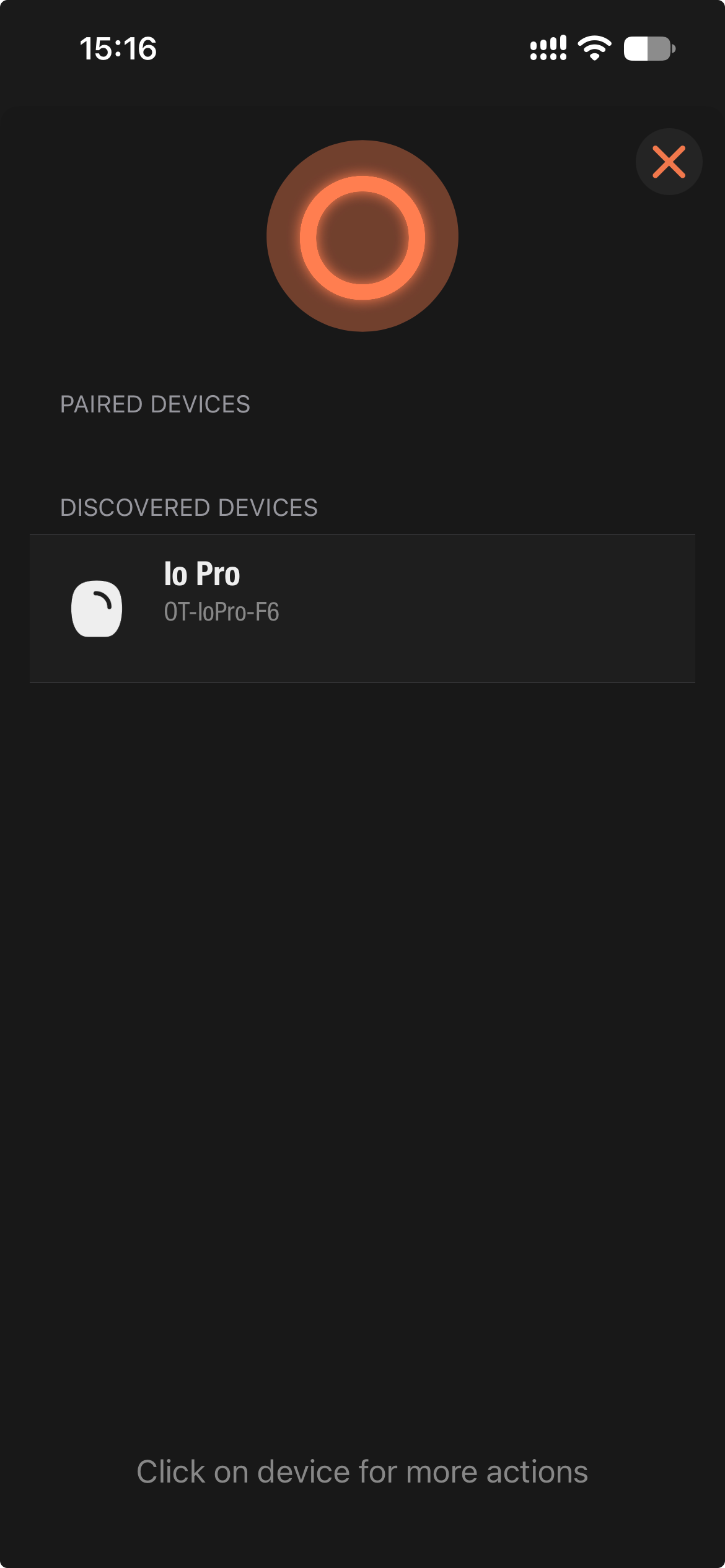
Io Pro pairs with an Ortta remote or with the Ortta app. Io Pro is always ready to pair while it is on, so you do not have to press anything on Io Pro first. Do not pair it in the Bluetooth settings of your phone. The pairing is rejected.
With Jupiter, Jupiter Pro, Pluto 2 or Pluto 2 Pro
With the Ortta app or the Ortta Camera app
The name of Io Pro in the lists is OT-IoPro-xx, where xx differs for each Io Pro.
Io Pro can be connected to up to three devices at the same time, for example Jupiter Pro, the Ortta app and a watch.
 |
 |
| Remote | Ortta app |
Io Pro talks to the camera over USB (PTP). Most cameras need a few menu settings first. Set the camera before you connect Io Pro. Some cameras do not save a menu change until they are switched off normally, so after a crash or a battery removal check the settings again.
For every brand:
Sony cameras fall into three groups.
New menu (2019 and later): A7 IV, A7R IV/V, A1, A9 II/III, FX3, FX30, ZV-E10, ZV-E1, A6700, A7C II, A7C R. These work best.
Old menu (2016 to 2019): A7 III, A7R III, A9, A6400, A6500, A6600, A99 II. These work with some limits.
Warning: never set the file format to RAW only. The camera may report a card error or freeze. These cameras do not support Camera Only: they must send a copy to Io Pro before they release the shutter. Shoot no faster than one photo every 2 seconds. If you shoot faster, the camera buffer can overflow, and the camera can need 5 to 10 seconds to recover. When the USB connection restarts, Io Pro reconnects by itself.
First generation (October 2013 to March 2016): A7, A7R, A7S, A7 II, A7R II, A7S II, RX10 III. These cameras cannot save a photo to the memory card when it is triggered over USB. Use them for video remote control only.
Before 2013 (NEX-7, NEX-6, A99, A77 II and others): not supported.
EOS R, second generation: R5, R5 C, R6, R6 Mark II, R7, R8, R10, R50.
5D Mark IV: update the firmware to version 1.3.3 or 1.4.0 or later. Older firmware has performance problems. Set Automatic Transfer (FTP) and Wi-Fi to Disable.
Other EOS DSLR and mirrorless cameras (6D, 70D, 80D, 90D, Rebel, 1300D, 2000D and so on):
For all Canon cameras:
Z9, Z8, Z6, Z7, Z6 II, Z7 II, Z6III, Z5, Z fc, Zf, D850, D750, D7500 and similar models.
Newer models: X-T4, X-T5, X-H2, X-H2S, X-S20, X100VI, GFX100 II.
Older models: X-T2, X-T3, X-Pro2, X-Pro3.
Only the higher-end Fujifilm cameras support USB control. Live view is not available with Fujifilm cameras.
S1, S5, S5 II, S1H, S1R, GH5, GH6, GH7, G9 II.
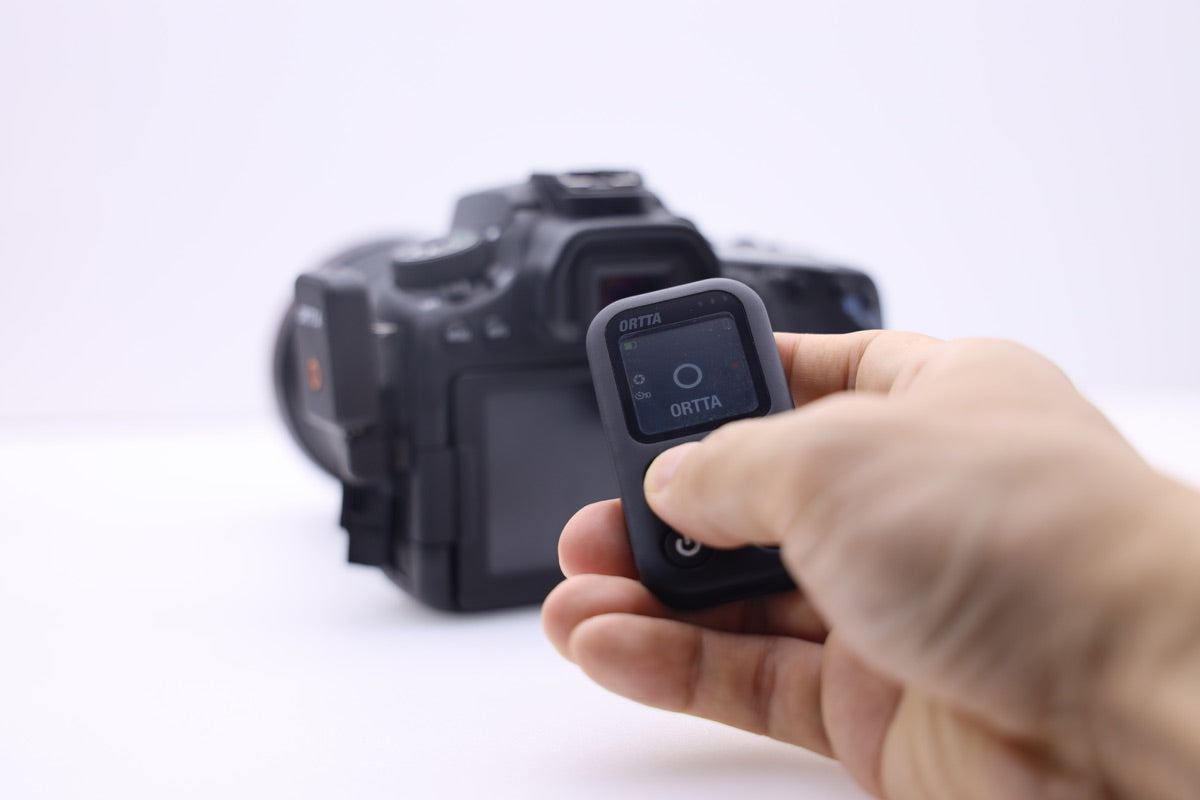
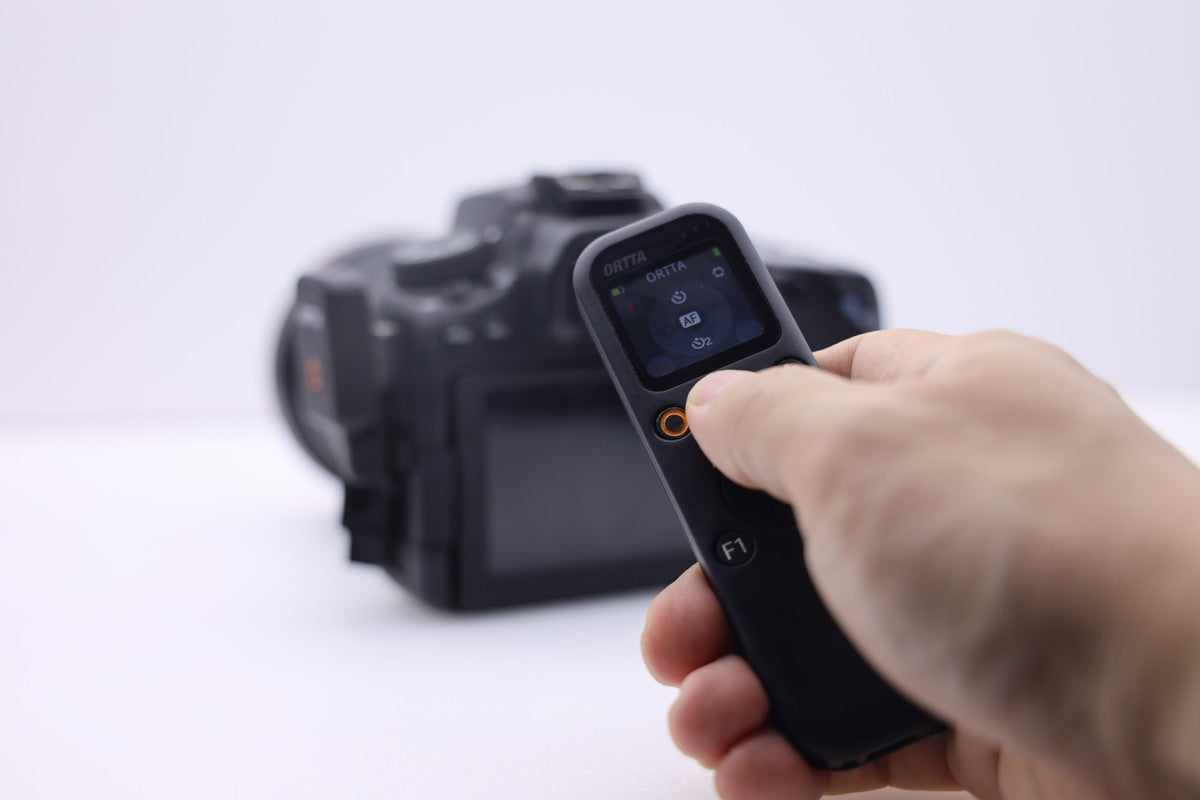
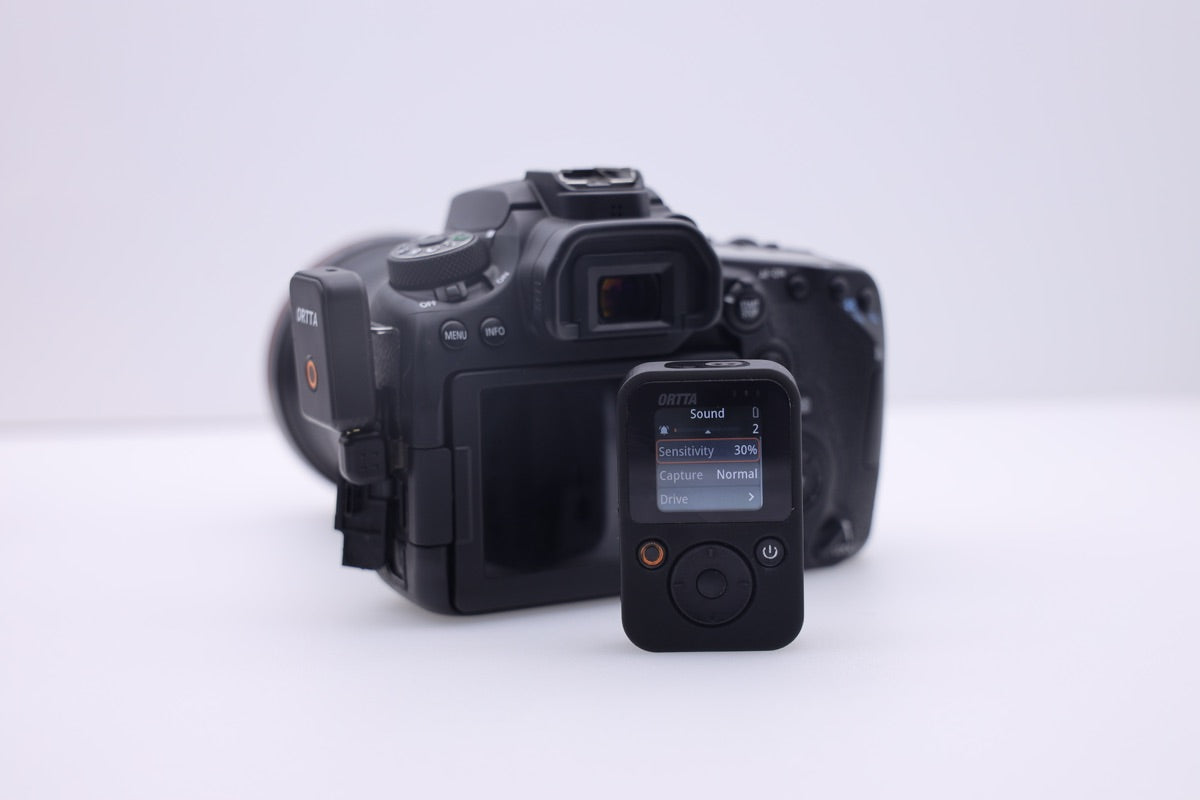
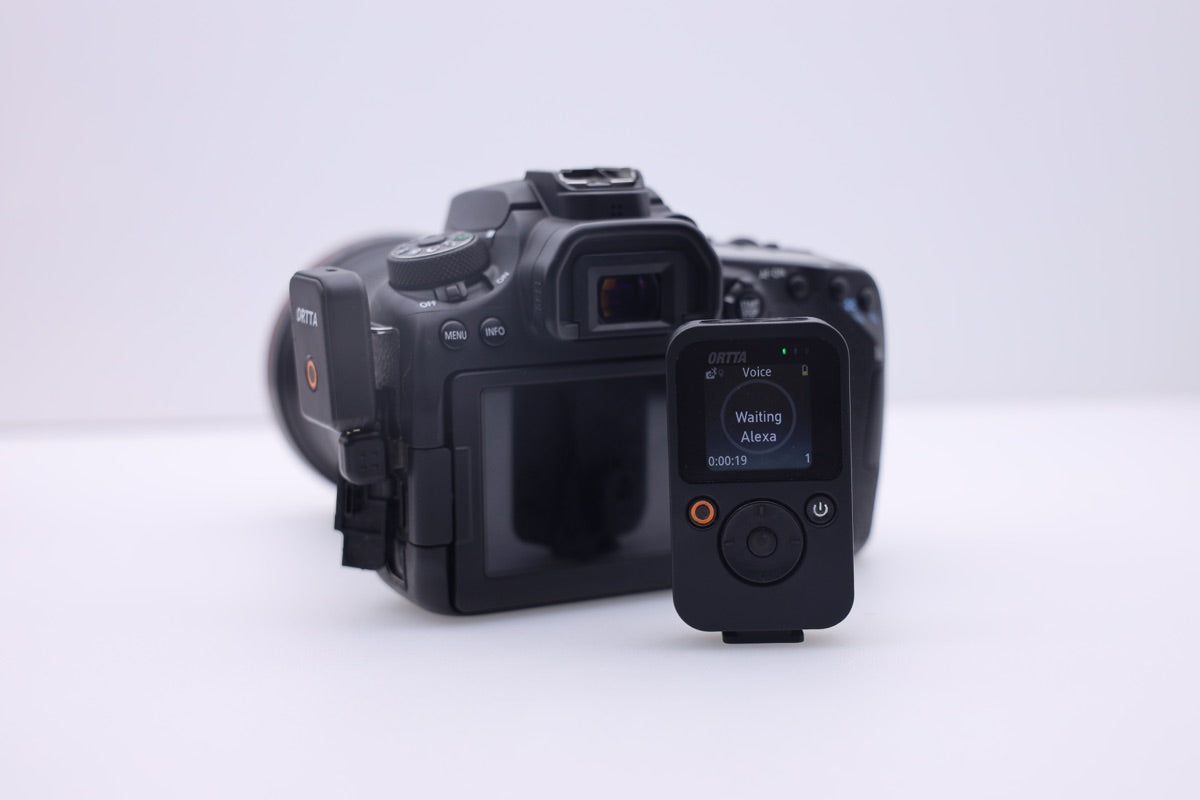
Jupiter, Jupiter Pro, Pluto 2 and Pluto 2 Pro all use Io Pro as a receiver. You pair Io Pro with the remote once (see Pairing). After that the remote finds Io Pro again by itself whenever both are on.
See the manual of your remote for the details: Jupiter, Jupiter Pro, Pluto 2 and Pluto 2 Pro.
 |
 |
 |
 |
| Jupiter | Jupiter Pro | Pluto 2 | Pluto 2 Pro |
Io Pro runs these programs. You set the parameters on the remote, in the Ortta app or on the Apple Watch, and start the program there.
| Program | What it does |
|---|---|
| Shutter | Takes a photo. Has a self-timer and a bulb mode for long exposures. |
| Timelapse | Takes photos at a regular interval. |
| HDR | Takes a series of photos with different shutter times. |
| Startrail | Takes a long series of photos for star trails. |
| Video | Starts and stops video recording. |
| Timer | Starts a program at a set time. |
| ND Filter | Long exposure, using the ND filter value you choose. |
| Starscape | Calculates the longest exposure for sharp stars (the 500 rule). |
The programs work the same way as on Pluto 2. See the Pluto 2 manual, chapter Shooting Programs, for the parameters of each one.
For HDR, Startrail and ND Filter, set the camera to BULB mode. Io Pro controls how long the shutter stays open. For HDR it changes this time from photo to photo.
Because Io Pro is connected to the camera over USB, it can read the camera.
Live view and photo review stop when the Bluetooth connection is lost. On Jupiter Pro
 |
 |
| Image Review | Live view |
You can set how the images look (review time, scale and quality) in the Review settings of Jupiter Pro.
On the other devices, how to start live view and where the photos appear depends on the device. See the manual of your remote: Jupiter, Jupiter Pro, Pluto 2 or Pluto 2 Pro.
The Ortta app can also fetch the full-size JPEG of each photo, so you can see and save the whole picture on your phone while you shoot. Io Pro reads the JPEG from the camera and the app fetches it over Wi-Fi.
Io Pro does not make its own Wi-Fi network. It needs your router or the hotspot of your phone.
Note: RAW files are not transferred; only the JPEG is. The camera must save JPEG, or RAW + JPEG. Sony cameras need the Wi-Fi of Io Pro to be on before the JPEG can be streamed. Photo transfer over Wi-Fi works with the Ortta app only, not with the Ortta Camera app.
Some cameras need their own Wi-Fi turned off before USB works (see Camera settings). This does not affect the Wi-Fi of Io Pro.
Io Pro connects to the Ortta app over Bluetooth, after you pair it. The app can:
Smart Sensors use the sensors of your phone to fire the camera through Io Pro. The phone must be near Io Pro while the program runs.
| Mode | How it triggers |
|---|---|
| Sound | Uses the phone's microphone. |
| Vibrate | Uses the phone's accelerometer; fires when vibration exceeds the set threshold. |
| Motion | Uses the phone's camera to detect motion. Zoom in and out to define the watched area, and adjust the sensitivity to the size of the subject. |
| Distance | Fires every set distance travelled. Good for road-trip time-lapses. |
| Voice | Recognizes a spoken command. Say "jarvis", "photo", "cheese" or "shoot" to take a picture, or "video" to start or stop recording. English only. |
| Smile | Detects a smile (or, in Blink mode, a blink) and fires 1.5 s after a notification sound. Good for selfies. |
The pages are the same as on Pluto 2. See the Pluto 2 manual, chapter Ortta App, section Smart Sensors, for the screenshots and the settings of each mode.
The Ortta Camera app turns a phone into a camera. Io Pro connects to it over Bluetooth and works as a manual Bluetooth remote: click the button on Io Pro to take a photo with the phone. It cannot record video. This does not fire your camera. Pair Io Pro with the Ortta Camera app the same way as with the Ortta app (see Pairing).
The Ortta Watch app controls Io Pro from your Apple Watch. The watch connects to Io Pro directly over Bluetooth, so you do not need your phone in the field.
With Io Pro connected, you can start and watch the Intervalometer programs from the wrist: Shutter, Timelapse, Startrail, HDR and ND Filter. Set the parameters on the watch and start the program there. The watch pages look the same as with Pluto 2 Pro; see the Pluto 2 Pro manual, chapter Watch App. The sensor programs of Pluto 2 (such as Sound and Lightning) do not work with Io Pro.
With Io Pro the watch can also show the photos you take (photo review).
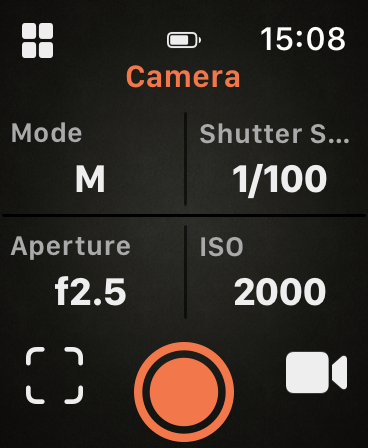
To see the camera on your wrist, open Camera in the watch menu. It shows the mode, shutter speed, aperture and ISO of the camera. Tap the viewfinder button to start live view, and tap it again to stop. Live view works with Canon, Nikon, Sony and Panasonic cameras.
Io Pro can write the position into the photos of a Canon camera over USB. Io Pro has no GPS of its own: the position comes from the Ortta app on your phone, from Jupiter Pro or from Pluto 2 Pro.
The options for Geotag rate are Off, 1 s, 2 s, 5 s, 10 s, 15 s, 30 s, 1 min, 2 min and 5 min.
Io Pro cannot geotag Nikon cameras. For Nikon cameras use the Ortta Io for Nikon (see the Io manual, chapter Geotag). For Sony cameras you do not need Io Pro for geotag. Jupiter Pro and Pluto 2 Pro connect to the Bluetooth of the Sony camera directly and send the position, with no extra device. See their manuals.
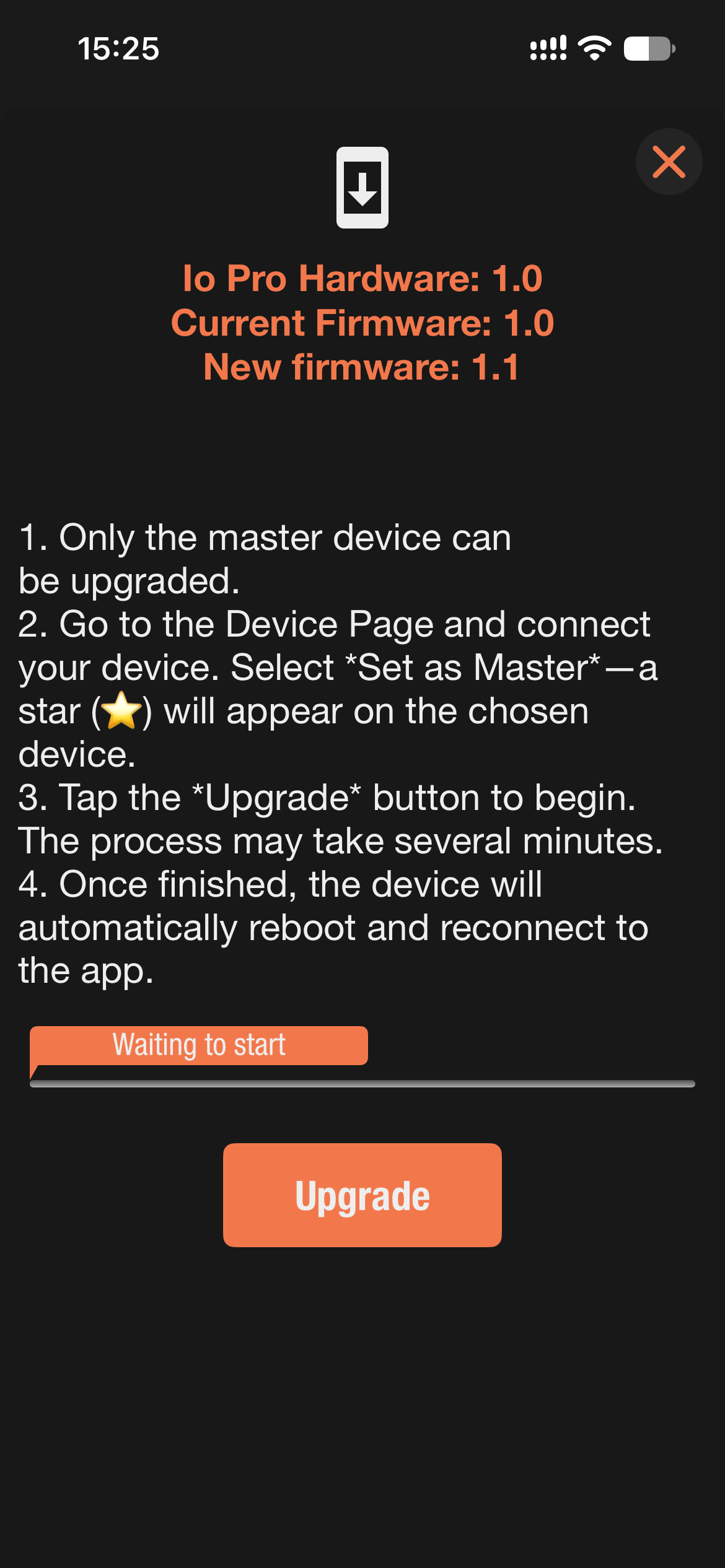
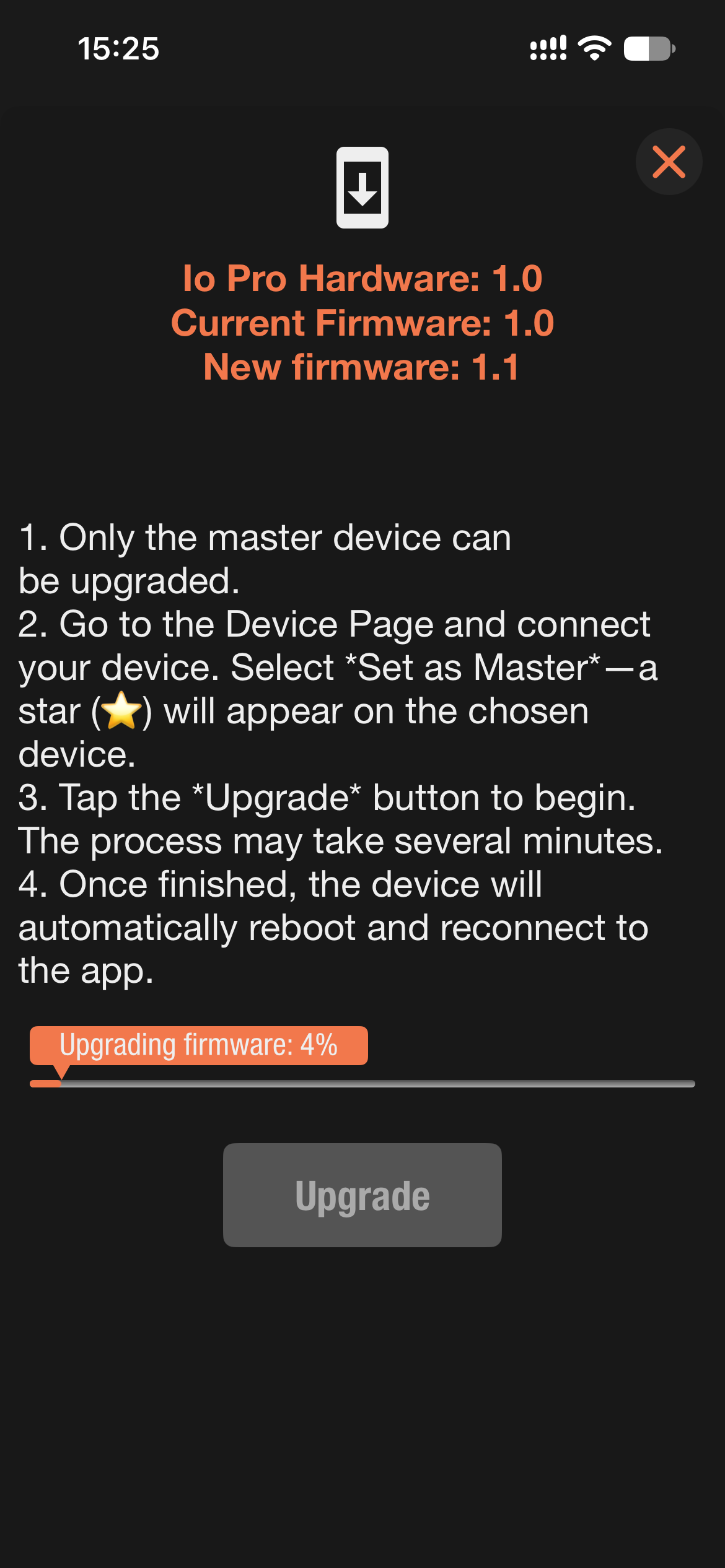
New firmware adds features and fixes bugs. You update Io Pro from the Ortta app over Bluetooth; no computer or cable is needed.
While the update runs, Io Pro does not turn off by itself. If the update stops or fails, you can start it again.
Note: after an update, leave Io Pro on and let the Ortta app connect to it once. This confirms that the new firmware works. If the new firmware does not start properly, Io Pro goes back to the previous version by itself, and the app offers the update again.
 |
 |
| Upgrade page | Upgrading |
What is the difference between Io and Io Pro? Io fires the camera over a shutter-release cable. Io Pro connects to the camera over USB: it can show live view, send photos to your remote, watch and the Ortta app, and write the phone position into Canon photos. The programs are the same.
Does my camera need Bluetooth? No. Io Pro uses the USB port of the camera.
Do I need Io Pro if my camera has Bluetooth? No. Jupiter and Pluto 2 can control cameras with Bluetooth remote support directly. Io Pro is for cameras without Bluetooth, for live view and photo review, and for running programs on the camera side.
Can Io Pro charge my camera? No. Turn off the USB power supply of the camera. Io Pro has its own battery.
| Problem | What to do |
|---|---|
| Io Pro is not found when pairing | Check that Io Pro is on. Stay close to Io Pro while pairing. Disconnect one device if three are already connected. Do not pair in the Bluetooth settings of your phone. |
| The camera does not fire | Check that the adapter plug is fully pushed into Io Pro and the camera, that the camera is on, and that its USB mode is PC connection / PTP. Go through Camera settings for your brand. |
| Io Pro does not find the camera over USB | Turn off the camera's USB power supply and Wi-Fi (most cameras need Wi-Fi off for USB control). Turn the camera off for 5 seconds, turn it on, and connect again. Check the camera battery. |
| The camera stops after a few photos | Some cameras (Sony 2016-2019) need at least 2 seconds between photos. Never record RAW only on these cameras. |
| HDR, Startrail or ND Filter do not work | Set the camera to BULB mode. |
| No live view | Live view is not available with Fujifilm cameras. Check that the camera is in Stills mode and that the camera supports USB live view. |
| The remote loses Io Pro | Move closer, and keep Io Pro away from metal and the body. |
| I turned off the remote or the app and the camera is still shooting | This is normal. A program runs on Io Pro, so it keeps going after the remote or app disconnects, and Io Pro does not turn itself off while it runs. When you reconnect, the remote shows the running program again and you can stop it there. You can also long-press the button on Io Pro to turn it off. |
For more information, visit ortta.co.